Everything in LineView IM, one topic at a time. The first parts are for everyone in the office. Topics marked ADMIN are for the people who manage LineView for your office.
Pictures show a sample office with fictional names.
Contents
What's New v1.1.3
What's new in the current version. A v1.1.3 tag marks something that version added. Earlier versions are on the previous versions page.
A fixes-and-polish update: Caller ID is more accurate, chat no longer leaves a blank window at startup, and the small alert card can now answer chats.
Caller ID for calls between coworkers.v1.1.3 When a coworker calls your extension from their desk phone, you see who is calling. Other people's internal calls no longer fill up everyone's Caller ID cards. Caller ID
Caller ID stays in view with chat open.v1.1.3 The Caller ID cards fit the card side of the window and stay at the top, instead of getting lost under chat. Caller ID
No more blank window at startup.v1.1.3 If chat opens inside the main window, your cards now appear as soon as you sign in. You no longer have to press Ctrl+R. Chat in the main window
Caller ID is back on the small alert card.v1.1.3 When LineView is minimized, a call to your phone shows the caller again. It follows your Show Caller ID for setting, and other people's calls never pop up on your card. The small alert card
Reply from the small alert card.v1.1.3 A chat alert now has a Reply box and a Send button, so you can answer without opening LineView. The small alert card
Close the small card with the ×.v1.1.3 Dismiss it without opening LineView. The small alert card
The small card stays current.v1.1.3 It refreshes the moment you minimize LineView, so it never shows an old call. The small alert card
LineView installs updates itself. See Updates to check which version you have.
LineView IM is a small Windows app that shows every phone in your office on one board. At a glance you can see who's free, who's on a call and whose phone is ringing, and you can message anyone in your office without getting up.
It works with the Cool Telecom phones you already have. LineView doesn't replace your desk phone and doesn't carry any sound itself. When you start a call from the board, it's your desk phone that rings and your desk phone you talk on.
Open the downloaded file (LineView-IM-Setup-…exe). It installs on its own and opens LineView when it's done. If Windows shows a Windows protected your PC box, see below.
Sign in. See the next two topics.
If Windows says "Windows protected your PC"
When you download and open the installer from LineViewIM.com, Windows may stop it with a Windows protected your PC box. This is normal for new software, and here's why.
LineView's installer is digitally signed by Telephoria, LLC. The signature proves the file really comes from us and hasn't been changed by anyone. But Windows' SmartScreen filter also looks at how many people have already downloaded a program. LineView is new, so Microsoft hasn't seen it installed very often yet, and SmartScreen asks you to confirm. As more offices install LineView, it builds up a track record with Microsoft, and this box stops appearing on its own. Nothing needs to change on your PC.
✕
Windows protected your PC
Microsoft Defender SmartScreen prevented an unrecognized app from starting. Running this app might put your PC at risk.
More info1
Don’t run
1 Click More info.
✕
Windows protected your PC
Microsoft Defender SmartScreen prevented an unrecognized app from starting. Running this app might put your PC at risk.
App:
LineView-IM-Setup-1.0.11.exe
Publisher:
Telephoria, LLC
Run anyway2Don’t run
2 Check the publisher, then click Run anyway.
Click More info.
Check that Publisher includes Telephoria, LLC and the app name contains LineView.
Click Run anyway. The install continues as normal.
If the publisher is anything other than Telephoria, LLC, or it says Unknown publisher, click Don't run. Delete the file and download LineView again from this site.
After that you never need to reinstall. LineView updates itself (see Updates).
If there's a phone on your desk with its own extension, you're an extension user.
The first screen you see.
For people with a phone extension.
For PCs with no phone (see the next topic).
Under Have a Phone Extension?, click Login with Username.
Type your username. It's your office's main number followed by your extension, for example 405-555-0100-202. Just type the digits. The dashes fill in by themselves.
That's the only time you sign in. LineView remembers you and goes straight to your office's board every time after that.
If you get too many attempts, stop and wait 15 minutes before trying again. If you've forgotten your password, reset it on CoolTele.com the same way you would for My Account.
A PC user is a computer that has no phone of its own, like a front lobby PC, a shipping station or a manager's laptop. It can chat with everyone and see the board, but it can't make calls.
Ask your office's LineView admin for a setup code for this PC. It's 6 letters and numbers, like wK3rvp.
On the first screen, under No Phone at your Desk?, click Login with Setup Code.
Type the code exactly as shown, including capital letters, and click Sign in.
Capital and small letters matter. wK3rvp and Wk3rvp are different codes.
Each code works once. After this PC signs in, it stays signed in, and that code can't be used again anywhere.
You normally never sign out. LineView is meant to stay signed in.
If a PC does need signing out (it's changing hands or being retired), ask your LineView admin. They can sign out any PC from Site settings (see Logging someone out). A PC that's signed out goes back to the sign-in screen within a few seconds.
To sign back in:
Extension users: sign in again with your username and password. Nothing is lost.
PC users: the old code is used up, so ask your admin for a new setup code.
Site settings (office settings, version, admin tools). The dot in the middle is green when chat is connected, red when it isn't.
Open chat. It opens beside the cards; click again to close it. A red number here counts all your unread messages v1.1.2.
Sort: by extension, by name, or your office's order.
Switch between the Expanded, Compact and Mini views.
Office Chat: message everyone at once.
A chat group you belong to.
Parked calls: 71, 72 and 73.
You. Your own card has no unread number; look at the chat icon (2) instead v1.1.2.
Chat with this person.
A PC user (a computer with no phone).
Cool Telecom Help.
The title bar shows your office's main number and the LineView version. The board changes size to fit your office. Drag the window's edge and it rearranges into more or fewer columns.
Closing the board closes LineView, chat included. To get it out of the way, minimize it instead.
LineView shows who is calling, so you don't have to guess whose phone is ringing.
While a call rings, every phone in the group shows who is calling. ◄ means the call came in.
When Theo answers, the rest of the group stops ringing and his card keeps showing the caller. The Caller ID card turns red, then fades away five seconds later.
► means that person made the call. This one shows the number they dialed.
Your own card works the same way. Dana called the Service Bay, and the Service Bay's card shows Dana.
The Caller ID card. When an outside call rings, a card appears at the top of the board over the LineView logo with the caller's name and number. If your phone system adds a prefix such as Sls> for Sales, it shows in orange before the name. The card turns from amber to red when someone answers, then fades away five seconds later. Click the × to dismiss one sooner. When several calls come in, the newest card is on top.
On the cards. A card that's ringing or on a call shows the other person right after its extension number. ◄ is a call that came in, and the name is the caller. ► is a call that person made, and it shows the number or extension they called. A call between two coworkers shows the extension and name.
Choose what you see. Open Site settings (the gear), then General. Under Show Caller ID for pick Entire office (the default), Only my calls, or No calls. Don't stack Caller ID keeps just the newest card. See Your settings on this PC.
Entire office:v1.1.3 a card for every outside call that is ringing or answered anywhere on the board, one card per caller. A call that rings several phones at once (a queue, for example) still shows just one card. You also see a card when a coworker calls your own extension.
Only my calls:v1.1.3 cards only for calls to your own phone, including calls from a coworker's extension. You won't see cards for anyone else's outside calls.
No calls: no Caller ID cards.
Calls between coworkersv1.1.3. If Crystal calls Mark from her desk phone, Mark's board shows a Caller ID card saying Crystal is calling. Nobody else gets a card for that call, because it isn't theirs. This keeps the card stack about outside callers, instead of filling it with every internal ring in the office.
With chat open.v1.1.3 Caller ID cards shrink to fit the card side of the window, beside the chat, and stay at the top over the LineView logo instead of sliding under chat.
Click the view button, the small button with two arrows in the upper right corner of the cards, to cycle through three sizes. Each click switches to the next one: Expanded, then Compact, then Mini, then back to Expanded. LineView remembers your choice on this PC.
The view button, enlarged. Each click switches to the next size.
Here is what each size looks like with chat open beside the cards:
ExpandedName and extension.CompactOne line per person.MiniExtension numbers only. Good for the corner of a screen.
Click Sort to change the order. Each click moves to the next choice:
Ext order: by extension number.
Name order: alphabetical.
Sort order: your office's own order, if an admin has set one (see Board order and hiding).
Hover over the Sort button to see which order you're in now. The button only appears when the board is more than one column wide, and it's hidden in Mini view. Office Chat, groups, parking and Cool Telecom Help always stay in place.
Click anywhere on a person's card (not the chat button) to call them.
Before you clickYour desk phone must be on hook. LineView starts every call from your own desk phone, so hang up any call in progress and leave the handset on its hook (or your headset idle) first. If your phone is already in use, the call can't start.
Calling the Service Bay (215) from Dana's desk (202).
Your own light goes red and your desk phone rings right away. Answer it. LineView connects you first, on your phone's speaker or headset, and only then calls the other extension.
Their light blinks while their phone rings, then goes solid red when they answer.
To end the call, hang up your phone or click the red hang-up button that appears on their card.
You can't call your own extension, a phone that's offline, or a PC user. PC users can't make calls from the board either.
If a call doesn't go through, the card briefly shows call failed. Check that your own phone is working. If the board says your extension is offline, see When something's wrong.
Parking puts your caller on hold in a shared parking spot, so anyone in the office can pick the call up from their own desk.
While you're on a call, hover over your own card. Two buttons appear in place of Set Status: Park and XFER.
Dana (202) parks her caller. Her phone hangs up and parking spot 71 lights up. Hovering over 71 shows who is parked there.
Hover over your card and click Park.
Your phone announces the spot number and hangs up. Your caller hears hold music.
That spot blinks red on everyone's board. Hover over it to see who is parked there: the caller's name and number v1.1.0.
Let the person the call is for know, for example with the Parked 71 message (see Custom messages).
Calls fill the spots in order, starting with 71. When 71, 72 and 73 are all in use, a second row, 74 to 76, appears below them.
All three spots are in use, so the second row appears and the next call parks on 74.
If nobody picks up a parked call within about two minutes, your phone system sends it back, normally to the person who parked it. Park isn't available on a conference call with more than one other person.
When someone parks a call for you, one of the parking buttons, 71, 72 or 73, blinks red. Click it to pick up the call.
The front desk parks a call on 71. Dana hovers over 71 to see who is parked there, then clicks it to pick the call up.
Hover over the blinking parking button to see who is parked there: the caller's name and number v1.1.0.
Click the button.
Your desk phone rings. Answer it and you're connected to the caller.
The parking button goes back to green, and your card shows who the caller is, like any other call.
Before you clickYour desk phone must be on hook. LineView rings your own phone first, so hang up any call in progress and leave the handset on its hook (or your headset idle). See Calling someone.
To tell someone a call is waiting for them, send them the Parked 71 message (see Custom messages).
When someone's phone is ringing and they aren't answering it, you can answer that call from your own desk. Hover over the ringing extension and click Grab.
Owen's phone is ringing and he's away from his desk. Dana hovers over his card, clicks Grab, and answers her own phone to take the call.
Hover over the card of the ringing extension. A green Grab button appears on it.
Click Grab. Your own desk phone rings.
Answer your desk phone. You're connected to the call that was ringing, and the other phone stops ringing.
Before you clickYour desk phone must be on hook. Grab rings your own phone first, so hang up any call in progress and leave the handset on its hook (or your headset idle). See Calling someone.
When to use it:
A coworker is away from their desk, in the restroom or with a customer, and their phone keeps ringing.
A call to a group or call queue is ringing several phones and you want to be the one who takes it.
You can see a call is about to go to voicemail and you'd rather catch it.
Good to know: Grab only appears on a card that is ringing, and never on your own card. If the call is answered or hangs up before you click, LineView says Nothing to pick up. Grab needs a desk phone, so a PC with no phone doesn't get the button.
While you're on a call, hover over your own card to see the XFER button. There are three ways to transfer:
Blind: the caller goes straight to the other person's phone, and you're off the call right away.
ANNC (announced): you talk to the other person first while your caller hears hold music, then hand the call over.
VM (voicemail) v1.1.1: the caller goes straight to the other person's voicemail box, and their phone doesn't ring.
You pick one the same way each time, and there are two ways to do it.
Drag and Drop method
Dana drags XFER onto the Service Bay (215) and lets go on Blind.
Hover over your card, then press and hold XFER.
Drag it onto the card of the person you're transferring to. Blind, ANNC and VM appear on their card.
Let go on Blind, ANNC or VM.
Click and Click method
Dana clicks XFER, then clicks Blind on the Service Bay's card.
Hover over your card and click XFER. It stays lit.
Point at the card of the person you're transferring to. Blind, ANNC and VM appear on it.
Click Blind, ANNC or VM.
Changed your mind? Click XFER again, or press Esc.
Transfer to voicemail (VM) v1.1.1
Dana drags XFER onto the Service Bay (215) and lets go on VM. Her caller goes to the Service Bay's voicemail, and the Service Bay's phone never rings.
Use VM when you know the person can't take the call, like when they're out or on a long call, and you want your caller to be able to leave a message. Drag XFER onto their card and let go on VM (the little envelope), or click XFER and then click VM on their card. Your caller hears their voicemail greeting and you're off the call right away, just like a blind transfer.
Announced (ANNC) transfers
Dana announces the call to the Service Bay, then clicks Complete.
After you choose ANNC, your caller goes on hold and your phone rings the other person. Your card shows two buttons:
Complete: hands your caller to them. Hanging up your phone does the same.
Back to caller: ends your call with them and puts you back with your caller.
If they don't answer, or they hang up because they can't take the call, you're put back with your caller automatically, and LineView tells you they didn't take it.
ANNC isn't offered on calls you dialed out to an outside number. Use Blind or VM for those. You can transfer to any phone extension on your board, or to Cool Telecom Tech Support, but not to a PC user.
Your status tells the office whether you're around. It shows after your extension number on everyone's board and in chat.
Hover over your own card and click Set Status.Pick a status from the list.
Available: the normal setting.
Do Not Disturb: your number shows red, and LineView stops popping up new-message alerts on your PC. Messages still arrive and wait for you.
Your office's own statuses, like "In a meeting" or "At lunch", are set up by your admin.
Works with chat open.v1.1.1 Set Status opens fully on the card side of the window, even when chat is open beside the cards, so it is never hidden behind chat.
To go back to Available, hover over your card and click Clear Status, or just click your card. You can also set your status from the top of the chat window.
With a status set, your card shows Clear Status. Owen (205) is on Do Not Disturb.
Your admin can hide extensions that nobody needs to see, like a fax line or a spare phone. Hidden extensions never show on the board.
They're also left out of the chat window's contact list. If you need to message one, click Show Hidden at the top of the contact list. Click it again (it now says Hide Hidden) to put them away. This only changes your PC.
Shows hidden extensions in your chat list. It only appears when something is hidden.
"Your extension is offline." LineView can't see your desk phone. You can still chat, but you can't call from the board until the phone is back.
Your card turns reddish and a yellow note appears at the top.
Check that the phone has power and its network cable is plugged in. If it's plugged in and still shows offline, contact Cool Telecom.
"Can't reach Cool Telecom." The PC has lost its internet connection, or can't reach Cool Telecom. The lights stop updating until the connection comes back, and then it recovers on its own.
A red note at the bottom of the board.
"All extensions are offline." Every phone in the office has dropped at once. This usually means the office internet or network is down.
Chat opens right inside the main LineView window, beside the cards, so the board and your conversations are in one place.
The cards on the left, chat on the right, and the divider between them.
Open and close it. Click the chat icon next to the LineView logo, or any chat button on a card. The icon turns green while chat is open. Click it again to close chat and give the cards the whole window.
Make room. If the window is too narrow for chat, LineView makes it wider.
Give the cards or the chat more room. Drag the divider between them. It snaps to whole columns of cards, and the board always keeps at least two. If the cards don't fit the window's height, they scroll.
Prefer a separate chat window? Open Site settings, go to General, and set Chat opens to In its own window. See Where chat opens.
Ready as soon as you sign in.v1.1.3 If chat was open in the main window when you last used LineView, it reopens beside the cards, and your cards appear right away. In 1.1.2 and earlier, some PCs showed an empty window until you pressed Ctrl+R. That is fixed.
If your cards have a scroll bar down the side, they don't all fit. A bigger office needs a bigger window, or a different layout. Cards are laid out in columns, so more columns means fewer rows, and with enough columns nothing needs to scroll.
With chat closed, the cards have the whole window. Drag the window's edge or corner to make it wider, or click the maximize button in the title bar. More columns appear as the window grows.
With chat open beside the cards, the chat keeps a minimum width, and the cards only get what's left. So do it in this order:
The cards scroll in a narrow window. Widen the window first, then drag the divider to the right: the cards gain a column and the scroll bar goes away.
Widen the window first. Drag its edge or corner, or maximize it. Chat takes the new space at first.
Then drag the divider to the right. It's the thin line between the cards and the chat. The cards get one more column each time you pass a column width, because the divider snaps to whole columns. Keep going until the scroll bar disappears.
Still scrolling? Make the window taller, switch to Compact or Mini view (see Views and sorting), or close chat with the chat icon next to the LineView logo.
Opens tall enough.v1.1.1 LineView opens tall enough to show your last row of cards, and pop-up notices stay on the card side of the window instead of hiding behind chat.
Good to know: with chat open beside them, the cards always keep at least two columns, and the divider won't squeeze chat below its minimum width. If the divider won't move any further, the window is too narrow, so widen it first. See Chat in the main window.
Where chat opens: the main window or its own window v1.1.0#
Chat normally opens inside the main LineView window, beside the cards. If you'd rather have chat in its own separate window, which you can move and size on its own, you can change that. It's a setting on this PC, so it doesn't change anyone else's.
Dana opens Site settings, changes Chat opens to In its own window, and chat opens in a window of its own.
Click the gear at the top left of the board. Site settings opens on the General tab.
Find Chat opens and choose In its own window. (To go back, choose In the main window.)
Close Site settings. Chat closes when you change this, so click the chat icon next to the LineView logo, or any chat button on a card, to open chat the new way.
With chat in its own window, the cards use the whole main window, and you can put the chat window anywhere, even on another monitor. If you close the chat window, the board stays open. See Your settings on this PC for the other settings on this tab.
Click the chat button (the speech bubble) on their card. Chat opens with their conversation.
Type your message and press Enter, or click Send. To start a new line without sending, press Shift+Enter.
Dana messages Lena (206).
You can also pick anyone from the list on the left of chat, or type a name or extension in Search people and groups.
If they aren't signed in, send anyway. LineView shows "User is offline. Message will be delivered when they sign in." The message waits and appears the next time they open LineView.
Cal (213) isn't signed in. His message is waiting for him.
Your messages are saved, so past conversations are still there after a restart.
Office (Everyone): everyone in your office sees it.
A group you're in. The number in brackets is how many members it has.
A red number means unread messages. Conversations with unread messages sit at the top, just under Office (Everyone) v1.1.2.
Cool Telecom Support, always last.
Search by name or extension.
Office Chat goes to everyone in your office. Use it for "Who can help with calls?" or "Lunch is here." Open it from the Office Chat card at the top of the board or from the chat list.
Groups are smaller conversations for a team, like Sales or Service. Your admin sets them up and chooses who's in them. Groups you belong to show on your board under Office Chat and at the top of the chat list. You'll only see the groups you're in.
Above the contact list is a switch with two choices, Send to one and Send to several. LineView starts on Send to one and remembers your choice on this PC.
Send to one: click a person to switch to their conversation.
Send to several: click one person, then click more people in the list. Everyone you pick is highlighted. When you send, each of them gets the message privately, as a one-to-one message. They won't see who else got it.
Send to several: Priya and Lena are both picked. Click a highlighted name again to take them off.
The first time you pick a second person, LineView asks Send to multiple people? Click OK. Tick Don't show this again if you don't want to be asked.
For something the whole office should see, use Office Chat instead.
A red number means "you haven't read this yet." As of 1.1.2, LineView shows those numbers in two places: the chat icon at the top of the board, and the chat list. Private chats no longer show a number on people's cards.
The chat icon at the top of the board
The chat icon next to the LineView logo shows one number: everything you haven't read, from Office Chat, groups and private messages together.
Everyone sees it now. Before 1.1.2, only people without a phone extension on the board saw a number here.
The number hides while chat is open and on your screen, whether chat is beside the cards or in its own window. You're already reading it, so LineView doesn't nag you. It comes back when chat is closed or minimized.
Private messages: look at the chat list
A red number for a private message now shows next to that person's name in the chat list.
Not on the board. Before 1.1.2, a number for private messages could appear on your own card. Now it doesn't, and other people's cards don't show one either. If you see a red number at the top, open chat and look down the list.
Office Chat and groups still show their red number on their own row in the chat list, as before.
Unread conversations rise to the top
In the chat list, any conversation with unread messages moves up to just under Office (Everyone), whichever way you sort the list (your office's order, by name, or by extension). Once you read it, it goes back to its usual place.
Two things stay put: when you're using Send to several, the people you've picked stay pinned at the top, and Cool Telecom Support stays last.
In short: you won't see red numbers on people's cards for private chats anymore. Check the chat icon at the top, or open chat and look at the list.
Custom messages are ready-made messages you send with one click, like Parked 71 or "Customer in lobby".
Click Custom Messages under the typing box.
Click one to send it straight away.
Every office has Parked 71, Parked 72 and Parked 73, which send "You have a call parked at 71." (and so on). Park the call, open that person's chat, and send the matching one. Your admin can add up to nine more. Click Cancel to go back to your conversations.
Open Site settings (the gear at the top left of the board). It opens on the General tab. The This PC and Notifications boxes only change LineView on the computer you're using. Everyone else keeps their own.
You'll see the General, Statuses, Messages and About tabs. Your office's admins see a few more (see Who's an admin).
Which calls show a Caller ID card v1.1.0.
Show only the newest card v1.1.0.
Where chat opens v1.1.0.
Launch at Windows sign-in: LineView starts by itself when you sign in to Windows. On by default.
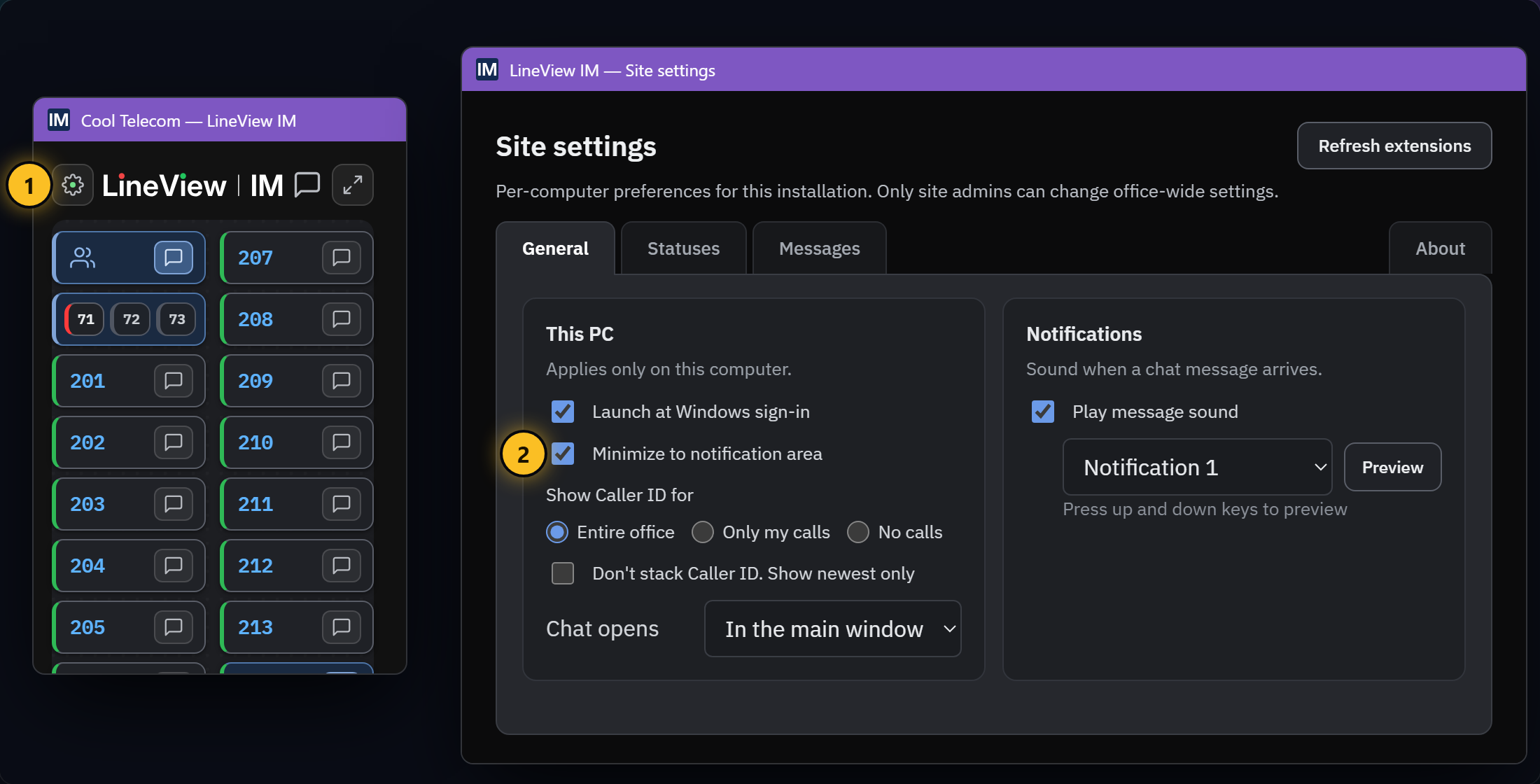
Minimize to notification area: closing the board window hides LineView next to the clock instead of quitting it. Right-click its icon there to show LineView or quit. Off by default, so closing the board closes LineView. To keep its icon always visible next to the clock, see Keeping the icon next to the clock.
Show Caller ID forv1.1.0v1.1.3: Entire office (every outside call, plus coworkers calling your extension), Only my calls, or No calls. See Caller ID.
Don't stack Caller ID. Show newest onlyv1.1.0: keeps one Caller ID card instead of a stack.
Chat opensv1.1.0: In the main window (the default) or In its own window. See Chat in the main window.
Play message sound: a sound when a chat message arrives. Pick the sound from the list, and click Preview (or press the up and down keys) to hear each one.
LineView can leave a small icon in the notification area, next to the clock. Windows hides most of these icons behind the up arrow (^) at the left of the notification area, so you have to click the arrow to see them. You can tell Windows to always show the LineView icon.
Step 1: Make sure the icon exists. LineView only puts its icon there when Minimize to notification area is turned on.
Click the gear at the top left of the board to open Site settings.
On the General tab, turn on Minimize to notification area.
1 The gear. 2 Minimize to notification area, checked.
With that on, closing the board hides LineView next to the clock instead of quitting it. See Your settings on this PC.
Step 2: Tell Windows to always show it.
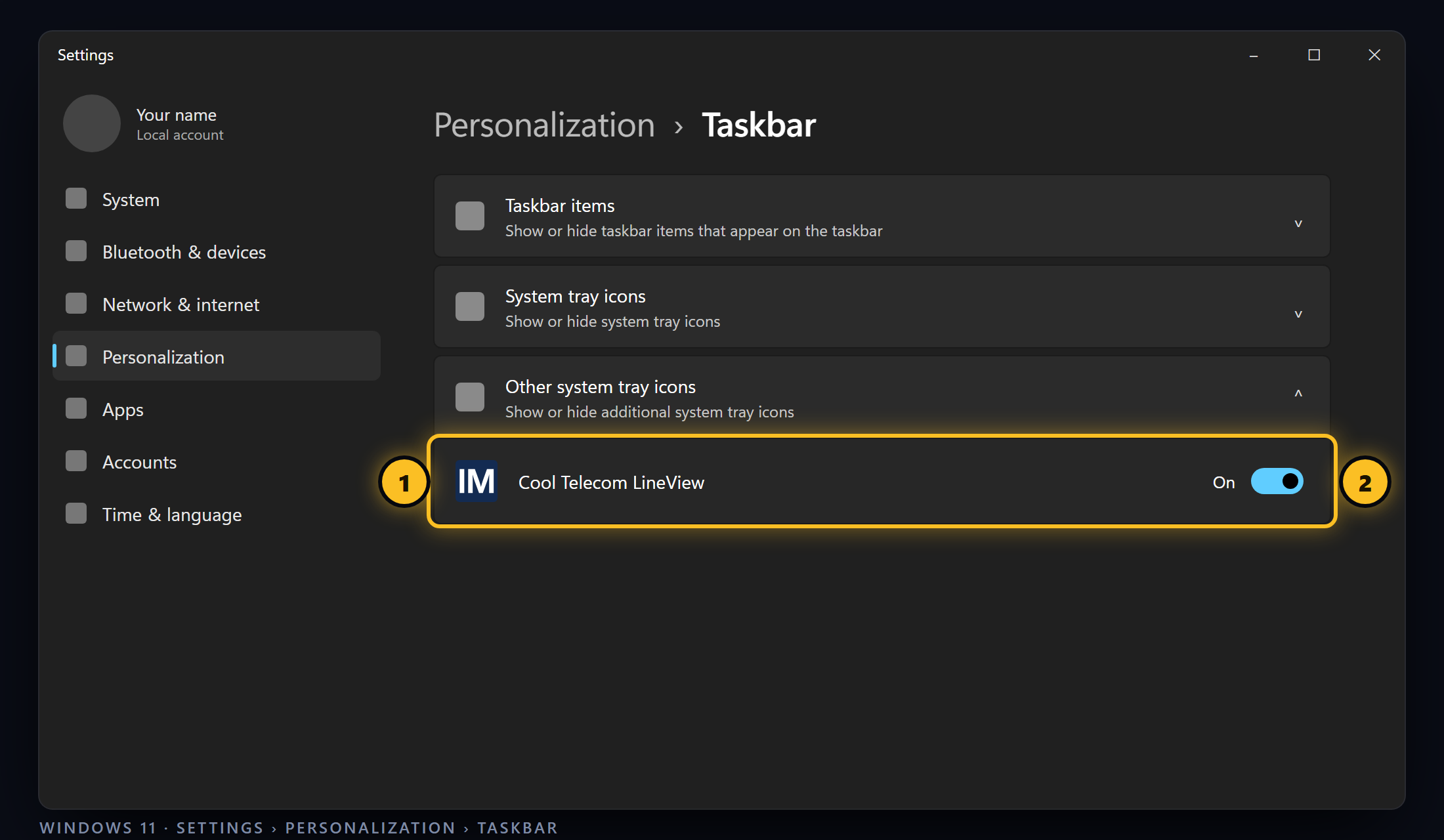
Windows 11:
Right-click an empty spot on the taskbar and choose Taskbar settings.
Scroll down and click Other system tray icons to open the list.
Find LineView (it may be listed as Cool Telecom LineView) and turn its switch On.
Windows 11. 1 The LineView row. 2 Its switch, turned On.
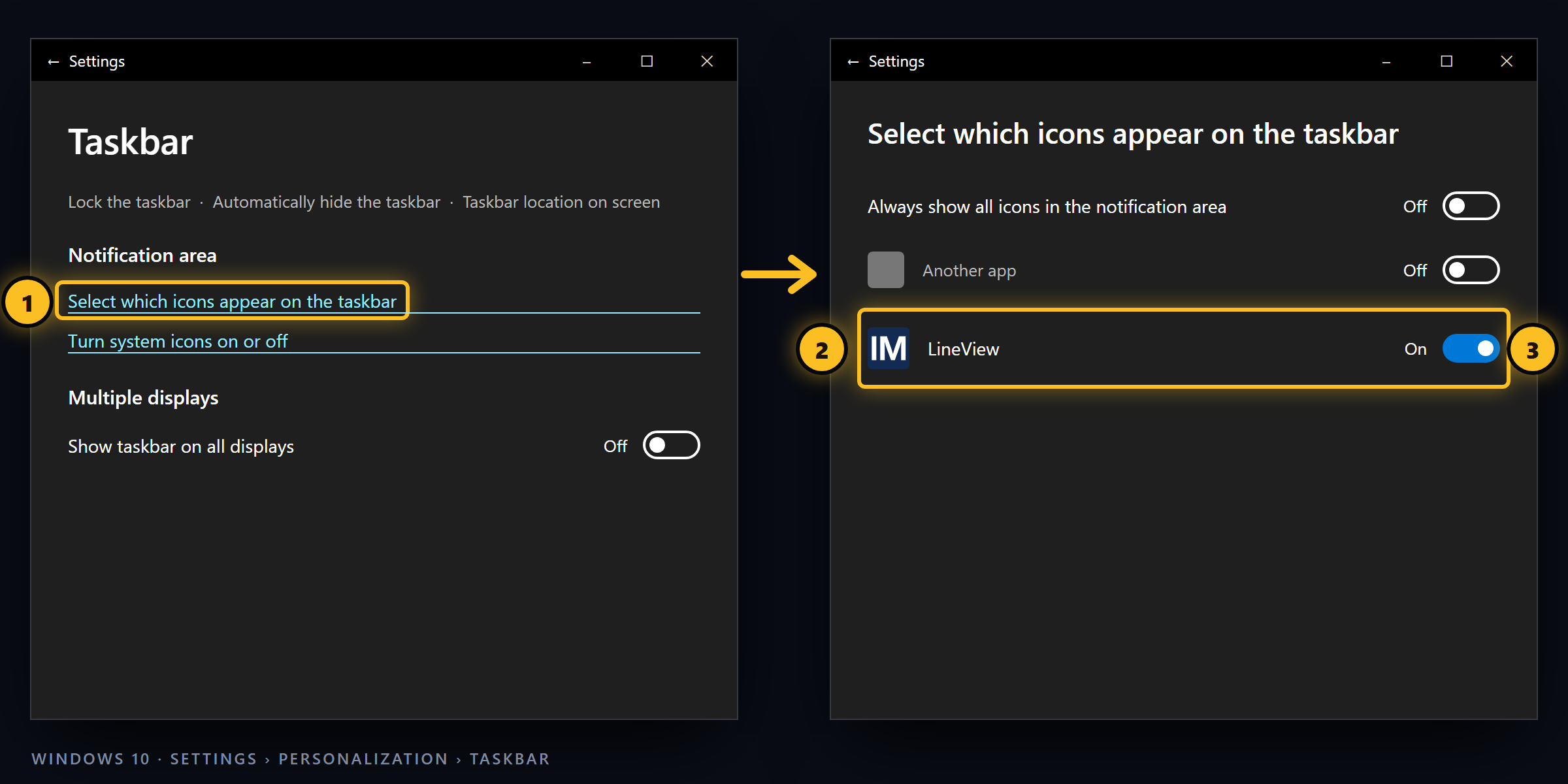
Windows 10:
Right-click an empty spot on the taskbar and choose Taskbar settings.
Scroll down to Notification area and click Select which icons appear on the taskbar.
Find LineView (it may be listed as Cool Telecom LineView) and turn its switch On.
Windows 10. 1 The link. 2 The LineView row. 3 Its switch, turned On.
A quicker way on either version: click the up arrow next to the clock, then drag the LineView icon out of the little pop-up and drop it on the taskbar next to the clock. Windows keeps it there from then on.
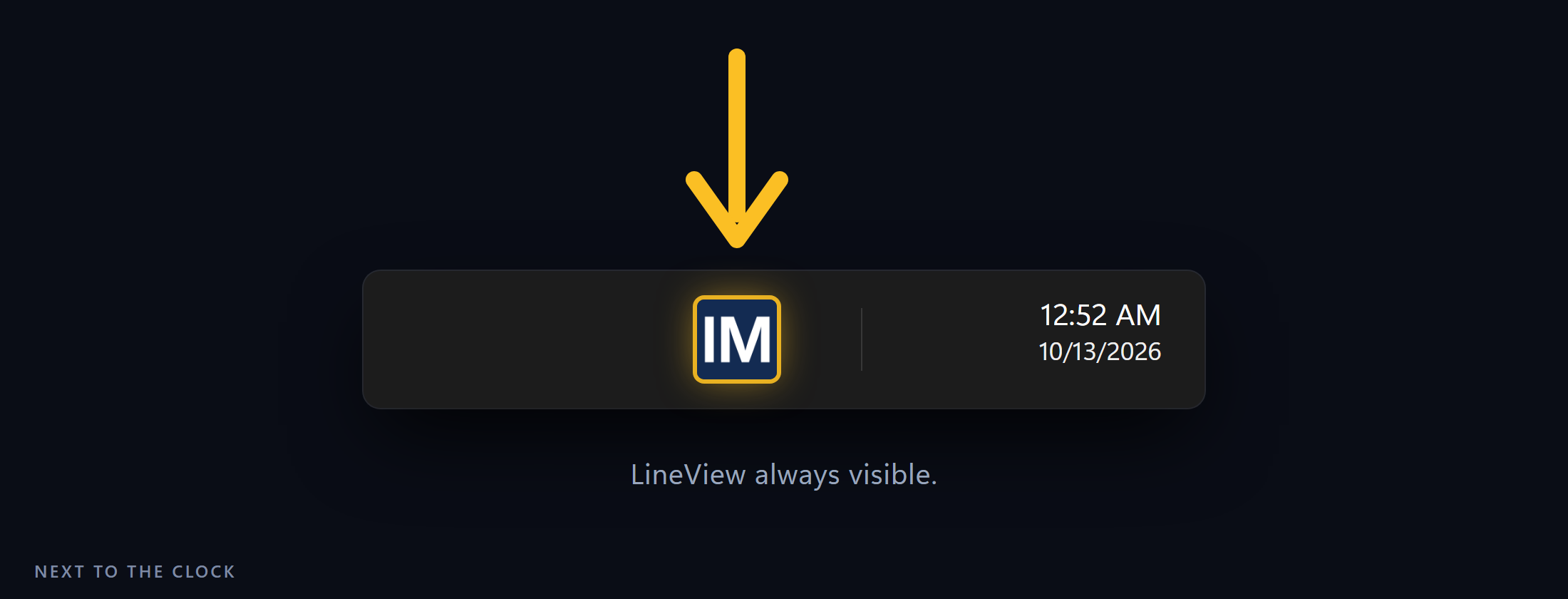
The result: the LineView icon stays next to the clock, so you can always see it and click it.
The LineView icon, always visible next to the clock.
Don't see LineView in the list? Windows only lists an icon after it has appeared at least once. Make sure Minimize to notification area is on, close the board so LineView hides next to the clock, and look again. To open LineView from the icon, click it, or right-click it and choose Show LineView.
If LineView is minimized, or hidden next to the clock, a small card pops up at the top right, on top of your other windows, when something needs you:
A call is ringing on your phone. It shows the caller, amber while it rings and red once you answer, with your own card below it. It only shows calls to your phone.A chat message arrived. It shows who it's from and what they said, for about eight seconds.
Caller ID on the card.v1.1.3 A call to your phone shows the caller whenever LineView is minimized or hidden. It follows your Show Caller ID for setting (see Caller ID). If you picked No calls, no call shows. Other people's calls never pop up on your card.
Reply without opening LineView.v1.1.3 A chat alert has a Reply box and a Send button. Click in the box, type your answer, and click Send. The card only lets you type once you click in the Reply box, so it never grabs the keyboard from the window you're working in.
Close it with the ×.v1.1.3 Click the × to dismiss the card without opening LineView.
Always up to date.v1.1.3 The card refreshes the moment you minimize LineView, so it doesn't show a call that already ended.
Apart from typing in the Reply box, the card never takes over the window you're working in, so it won't interrupt your typing. Click the card anywhere else to bring LineView back. When the board is open you see the same things there, so the card only appears while LineView is out of the way.
Check before you walk over. Red means they're on a call. Send a chat instead, and they'll see it when they hang up.
Message while you're on a call. Ask a coworker a question in chat without putting the caller on hold.
Reception: keep the board open where you can see it all day. Blinking red means a phone is ringing and nobody has picked up yet.
Parking a call for someone: park it, then send them Parked 71. They click 71 on their board to pick it up.
Keep LineView running. Minimize it rather than closing it, so chat alerts keep coming. Pinning LineView to your taskbar makes it one click to reopen. LineView can also start with Windows (see Your settings on this PC).
Shared PCs (lobby, shipping) should be set up as PC users. They stay signed in, so nobody has to log in each morning.
LineView checks for a new version every hour. When one is ready, a green New version button appears at the top of the board. Click it and LineView installs the update and reopens itself.
Click to update.
To check yourself, open Site settings (the gear), go to the About tab, and click Check for new version. The About tab also shows which version you have.
Site settings → About.
If the update doesn't finish
When you click New version, LineView closes and the LineView IM Updater window installs the new version, then reopens LineView on its own.
The Updater at work. The bar keeps moving while it installs.
If this window stays up for several moments, then vanishes without any additional information or error message, download the program and install it from the downloaded file:
For IT staff: some antivirus products can block the small temporary update helper that LineView places in the user's Temp folder during an update. If updates keep failing, allow the LineView folder and the LineView IM Updater in your antivirus, or pause real-time scanning while the update runs. Installing from the downloaded file, as above, works either way.
If you ever need an installer again, older versions are listed under All versions. For IT staff who want to confirm a download is genuine, the home page footer shows the installer's SHA-512 fingerprint, and Windows shows the installer as signed by Telephoria, LLC (right-click the file → Properties → Digital Signatures).
Admin tasks ADMIN
Everything here is in Site settings (the gear at the top left of the board). Changes apply to every LineView in your office.
Your office's LineView admins are the people Cool Telecom has marked as managers on your account, plus Cool Telecom Tech Support. To add or remove an admin, contact Cool Telecom. PC users can't be admins.
Everyone can open Site settings, but only admins can change things. Everyone else sees the office's statuses and messages, the Refresh extensions button and the About tab.
For a computer that should chat but has no phone of its own: a lobby PC, a shipping station, a laptop.
Name the PC and click Add PC.
Its setup code.
Make a new code.
Print every unused code.
Open Site settings → Users → PC users.
Type a name people will recognize, like "Shipping PC", and click Add PC. It gets an extension in the 800s and shows on everyone's board.
Its setup code appears on its card. Give that code to whoever sets up the PC, or click Print unused codes.
On that PC, install LineView and sign in with the code (see Sign in: PC users).
Each card shows where that PC stands: Not set up yet, Signed in or Signed out.
New code: makes a fresh code and cancels any unused old one. Use it when a PC needs setting up again, for example after Windows is reinstalled. A PC that's already signed in keeps working.
Log out: signs that PC out. It needs a new code to sign back in.
Trash can: removes the PC completely, and it's signed out immediately.
Codes are case-sensitive and work once. When you read one out over the phone, say which letters are capitals.
Use this when a PC is changing hands, a computer is being retired, or someone has left.
Log out. This person is signed in on 2 PCs, so both get signed out.
Open Site settings → Users. Extension users lists everyone with a phone. PC users lists the phoneless PCs.
Click Log out on their card and confirm.
Within a few seconds, that PC goes back to the sign-in screen. Logging someone out doesn't delete anything, and it doesn't change their Cool Telecom password. An extension user can sign straight back in with their username and password.
To sign out the PC you're using, open Site settings, go to the About tab, and click Log out at the bottom. The card marked This PC in Users is also you.
Open Site settings → Groups and click Create group.
Type a Group name.
In Available, click a person (hold Ctrl to pick several), then click › to move them to Members. Double-clicking a name moves it too. ›› adds everyone.
Click Create group at the bottom. It takes a few seconds.
To change who's in a group, click the group on the left, move people with › and ‹, then click Save members. Someone you remove loses the group right away.
To delete a group, click it and then Delete. A group can't be renamed. Delete it and create a new one with the new name.
Any admin can manage any group, even one they aren't in. Admins also see a small × on the group's card on their board, which lets them leave that group.
Set the order everyone sees when they choose Sort order, for example front desk first and the service bays together.
Check rows to glue them together and move them as a block.
Drag a row by its handle.
Hide or Unhide.
Or nudge a row up and down.
No PC: this phone has no computer, so no chat button.
Open Site settings → Sort.
Drag rows into the order you want, or use ▲ and ▼. To move several together, check the box on each one first.
Click Hide on any extension nobody needs to see, like a fax line. Hidden rows are dimmed here. They disappear from everyone's board, and from the chat contact list unless someone clicks Show Hidden there (see Hidden extensions).
Check No PC on a phone that has no computer next to it, like a conference room phone. Its card on the board loses the chat button, and it's left out of the chat contact list and chat groups. Phones with “Cell” in their name are always treated this way.
Click Save.
New extensions are added to the end automatically. Remove custom order puts every board back to sorting by extension or name.
Admins see an extra Office branding box at the bottom of the General tab. It changes the title bar and the logo at the top of the board for everyone in your office.
Display name: replaces the phone number in the title bar.
Choose logo: a PNG or SVG, up to 500 KB. It shows 22 pixels tall in the header (18 in Mini view). Remove logo appears once one is uploaded.
Save branding applies both.
Other PCs pick the change up the next time they sign in, or right away when someone clicks Refresh extensions (see Fixing names on the board). Leave the name blank, or remove the logo, to go back to the standard title and the LineView logo.
The rest of the General tab, This PC and Notifications, is the same for everyone and only affects the computer it's on. See Your settings on this PC.
If a name on the board is out of date (someone new has taken over an extension), click Refresh extensions at the top of Site settings. LineView pulls the current names from your phone system. Anyone can do this.
The button briefly shows Names updated, or Already up to date.
Names come from your phone system, so to rename an extension, ask Cool Telecom to change it there and then click Refresh extensions.
Private by design. Your messages never go through Google, Microsoft, Slack or any other big-tech chat service. They travel only to Cool Telecom's own messaging server, which serves Cool Telecom customers and no one else.
Every office is walled off. Each office gets its own separate space on that server. Every account belongs to exactly one office and can't see or reach anything outside it.
Encrypted in transit. Everything between LineView and Cool Telecom is encrypted with TLS, the same protection your bank's website uses. Sign-in keys are stored only as SHA-256 hashes, never as readable passwords.
The lights show phone activity, nothing else. LineView shows whether a phone is free, ringing, on a call or offline. It doesn't show who's calling, record calls, or track where anyone is.
Chat messages are kept for one year so conversations are still there when you come back to them.
Admins can see which PCs are signed in and when each was last used, so they can sign out old ones. They can't read one-to-one chats from Site settings.
 Cool Telecom LineView